Lightroom Classic plugin
The Lightroom client gallery plugin. Never leave Lightroom.
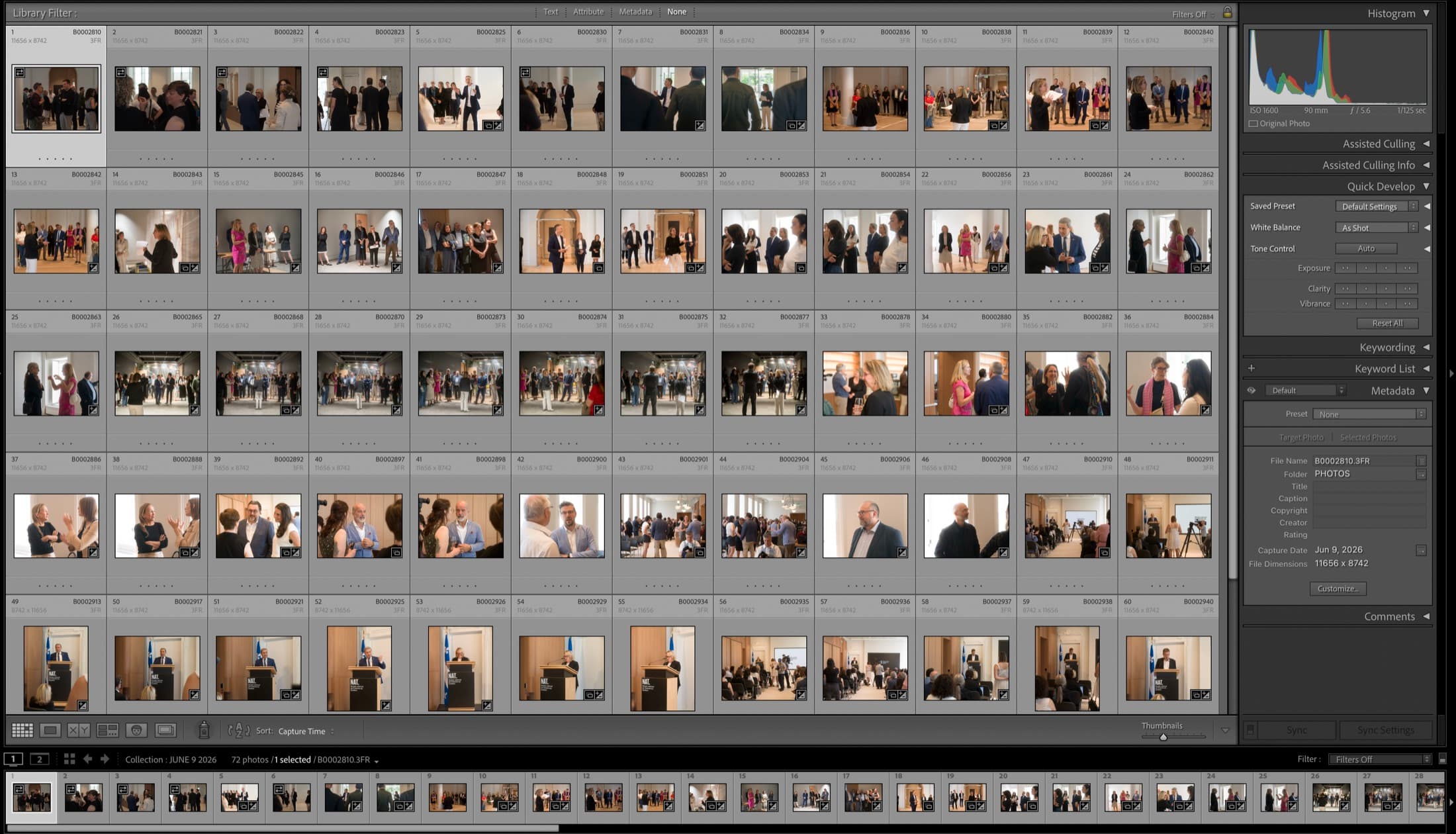
The plugin closes the loop at both ends. Select a shoot and export it: ClientGallery appears in the Export dialog like any other destination, and the gallery is built, named, password-set and ready to send by the time the render finishes. When your client is done choosing, one more command flags the loved photos in your catalog and gathers every pick into a collection. No browser, no drag-and-drop, no retyping filenames from an email.
One-time setup
Five minutes, done once per computer. After this, publishing is just the Export button.
Download and unzip
clientgallery.io-Lightroom.zip. Double-click the ZIP and it becomes a folder named clientgallery.io.lrplugin. Move that folder somewhere permanent, like Documents. Don't leave it in Downloads: Lightroom points at the folder, so if it moves later, the plugin breaks.Add it to Lightroom Classic
clientgallery.io.lrplugin folder, and click Add Plug-in. ClientGallery appears in the list with a green light, “Installed and running.” Click Done.Restart Lightroom
Cmd + Q) and reopen it. Lightroom builds its list of export destinations at launch, so the plugin won't show in the Export dialog until you've restarted once.Paste your studio key
Cmd + Shift + E (Export). At the very top of the Export window there's a dropdown labelled Export To: that says “Hard Drive”. Switch it to ClientGallery. Paste your key in the Studio key field and click Check: it should greet you by name. The key is remembered from now on.Watch the dropdowns: there are two
Updating from an older version
Cmd + Q). Download the new ZIP, unzip it, and replace the old clientgallery.io.lrplugin folder in the same place (for example in Documents). Reopen Lightroom: File → Plug-in Manager shows the new version. Don't use Remove, and never delete the publish service: your published galleries and your clients' picks stay intact.One-click sync: the Publish Service
The power-user upgrade: the gallery lives in Lightroom's left panel, Lightroom tracks what's new or edited, and one click of Publish pushes exactly the changes. Nothing to remember.
Set up the service, once
Create a gallery as a collection
Click Publish
It stays true both ways
Picks come back on their own (version 4.0.2)
Importing client selections back into Lightroom
When the client sends their picks, pull them into your catalog: flags, stars and a collection, matched by filename. No retyping.
Wait for the picks
Copy the gallery link
Run the import
What it does in your catalog
Edit exactly what they chose
Good to know
- • Your studio key is a password. If a machine leaves your hands, regenerate the key on the dashboard and the old one dies.
- • A free account holds one gallery. Exporting to the same name keeps topping it up. Unlimited galleries are 10 $/month.
- • Picks match on filename, so import into the catalog holding the same files you published.
- • Lightroom Classic only. The cloud-based Lightroom app doesn't take plugins.
- • Prefer a plain list? Every completed gallery also has an Export picks (.txt) button.